Showing posts with label Guides. Show all posts

Thursday, April 7, 2011

Why Would You Want To Use Perl Scripts?

First let me tell you the history of Perl scripts and then I will go into why I think Perl is the best overall programming language that there is. Perl is a programming language created by Larry Wall in 1987. It is based mainly on the programming language C but also borrows features from many other languages. Many people new to this language think that it is written PERL and is an acronym but that is not the true name and is a way that “insiders” identify “outsiders” in this programming language’s world.

Perl was originally named “Pearl” after the parable of Jesus Christ in the Bible that talks about a man who found a pearl in a field and immediately went and sold all that he had in order to buy the pearl. Otherwise known as the story of “the Pearl of Great Price,” the pearl originally was a symbol for the kingdom of heaven something obviously of great value and it was this idea of great value that Larry named his language. Unfortunately Larry found that there was already a programming language named “pearl” and so he shortened the name to Perl. The original manual had a camel as the cover picture and the symbol of the camel has becomes Perl’s official symbol.

Although it is not an acronym it has become known as Perl – practical extraction and report language. This is a good description of the tasks that Perl scripts are good for that is data in the form of text that are found in lists, programs, etc. Because it is good at these things it has widely been used like glue in the programming world, that is it can be used as an interfacing language to run programs together that were not originally designed to be compatible. Its use on the popular LAMP platform for web development is an obvious application for these abilities to interface. This is a main reason why this should be of interest to you, the ultimate internet marketer. Other popular applications or in the informatics world where it can be used to manage large and complex databases.

Perl is either loved or hated. Those who hate on Perl scripts cite their ugly and “write only” format. This references the programming language’s complex use of punctuation and symbols, making its readability not the greatest and often such that you can’t go back and look at the code and easily understand what the programmer was intending. Those who love Perl talk of its ease of use and its wide range of application.

Wednesday, April 6, 2011

How to Find What You Want with Google

Most people who search on the internet have a favorite search engine. In fact, the majority of internet users choose Google.

Do you fall into this category? If so, are you taking advantage of everything Google offers?

If an internet search means you go to www.google.com and simply type 2 or 3 words into the search box, hoping to find what you're looking for, you aren't even scratching the surface.

How Can You Get Better Results?
Google is the number one search engine for good reason - their results are generally the most accurate. Even so, there are ways to pinpoint what you're looking for even more effectively.

You have two options when it comes to fine-tuning your searches - you can use the Google Advanced Search screen or you can use "modifiers" in the main Google search.

Option 1: Google Advanced Search
When you go to www.google.com, there is a little "Advanced Search" link to the right of the main search box. If you click on that, you'll get the much more detailed Google search, where you can make very specific requests.

The first four sections, highlighted in blue, are some of the most important. Here you can specify any of the following:

  1. All of the words - this will give you results with all of your search words, but not in any particular order. They can also be anywhere on the page.
  2. The exact phrase - this will give you results with exactly the phrase you enter. The phrase must appear on the page exactly the way you enter it.
  3. At least one of the words - this will show results with any one or more of your search words on the page.
  4. Without the words - this will give you results that don't include your search terms at all.
These four sections can be used independently or combined to work together.

For example, you could search for the exact phrase 'free virus software' without the words 'trial' or 'tryout' if you're looking for free virus software but don't want trial versions that will expire after a short time.

As another example, you could use option #3 (at least one of the words) if you're looking for something but don't know exactly how to spell it. Put a few possible spellings in and it will find pages with any one or more of those spellings.

The rest of the sections on the Advanced Search page are pretty self-explanatory. One that I will point out is the Domain option. You can specify a website and either search for something only on that site, or anywhere but that site.

If you've found an interesting website that doesn't have a search function of its own, you can use this to limit Google to searching that site for whatever you're looking for. In fact, the Google search is often better even if the site does have its own search function.

You can also use it to find other references to something you might have read on a particular website. If you search for it and exclude the site you saw it on, you'll find other references to it that you can cross-check.

Option 2: Using Modifiers
Modifiers will let you use all the advanced features without having to go to the Advanced Search page every time. These modifiers can just be entered in the standard Google search box to get the same results as the advanced options.

There are quite a few different modifiers that can be used, but some of the most useful are as follows:

Putting "" around a phrase will search for the exact phrase. Searching for free antivirus software will show you pages with those three words anywhere on the page. Searching for "free antivirus software" shows you pages that contain that exact phrase.

Putting a - before a word is the same as the advanced option "without the words." So, to use the example used earlier, searching for "free virus software" -trial -tryout will show pages with that exact phrase, not including the other two words.

Using site: followed by the domain name of the website you want to search will only return results from that particular website. For example, searching for "virus protection" site:computer-help-squad.com will only return results from the www.computer-help-squad.com website.

Again, these can be combined so -site: will return results from any site except the one you specify.

How to Figure Out the Modifiers
The easiest way to see how to use modifiers in your searches is to try some searches with the Advanced Search page and see how Google formats them.

Using our example again, if you enter 'free antivirus software' in the "with the exact phrase" box and the words 'trial' and 'tryout' in the "without the words" box, the search that Google runs looks like this:
"free virus software" -trial -tryout
If you play around a bit with the advanced searches, you'll see how Google formats them for you. Next time, you can just enter them yourself in the standard search box instead of going to the Advanced Search page.

Once you get the hang of these options in Google, you'll find that your searches get even more accurate because you can filter out the stuff you don't want.

Monday, April 4, 2011

ITIL: Understanding and Using IT Service Management

ITIL’ is a term that is fast gaining currency around the IT world. It is often wrongly described as ‘IT governance’ – in fact, on its own, it certainly isn’t this. ITIL is a collection of best practices that helps companies implement an IT Service Management culture. However, its growing popularity reflects the substantial impact it can make on a company’s IT and business performance and the fact that, in combination with other frameworks, it is a vital ingredient in creating true IT governance.

What is IT Service Management?
Today’s businesses are increasingly delivered or enabled using information technology. Business and IT management need guidance and support on how to manage the IT infrastructure in order to cost-effectively improve functionality and quality. IT Service Management is a concept that deals with how to define and deliver that guidance and support. In common with other modern management practice, it views things from the customer’s perspective, i.e. IT is a service that the customer or consumer receives. It can be made up of hardware, software and communications facilities, but the customer perceives it as a self-contained, coherent entity.

So what is ITIL?
Standing for ‘IT Infrastructure Library’, ITIL is a set of best practices that are at the heart of the IT Service Management approach. It provides guidance on how to manage IT infrastructure so as to streamline IT services in line with business expectations. ITIL is a best practice framework, presenting the consolidated experience of organisations worldwide on how best to manage IT services to meet business expectations.

ITIL was originally developed during the 1980s by the UK’s Central Computer and Technology Agency (CCTA), a government body, which created ITIL version 1 as an approach to incorporating various vendor technologies and serving organisations with differing technical and business needs. CCTA has now become part of the Office of Government Commerce (OGC), which, as official publisher of the ITIL library, updated it, published version 2 and continues to develop and support it.

ITIL has since become widely adopted across the world in both public and private sectors and is recognised as best practice, being deployed in organisations of all shapes and sizes.

What makes up the ITIL Library?
ITIL documentation consists of seven ‘sets’ or ‘volumes’: Service Support, Service Delivery, ICT Infrastructure Management, Security Management, Planning to Implement Service Management, The Business Perspective and Applications Management.

Of these, Service Support, Service Delivery and Security Management are considered the central components of the ITIL framework, covering vital issues such as Incident Management, Configuration Management, Change Management, IT Service Continuity Management, Availability Management and IT Security Management.

Learning about ITIL
The seven ITIL volumes are published by The Stationery Office, the official publisher of the UK government, and are available from http:// www.itgovernance.co.uk/catalog/23 . In addition, to gain an overview and a sense of how to navigate these, it is helpful to consult one of several recommended introductory texts. ‘Foundations of IT Service Management Based on ITIL – An Introduction’ is widely accepted as the best starting point and self-study guide. ‘Implementing Service and Support Management Processes – A Practical Guide’ is a thorough and comprehensive handbook on the subject, while the ‘itSMF Pocket Guides’ provide a good overview of each of the ITIL components. These supporting texts may be obtained at http:// www.itgovernance.co.uk/catalog/7.

Getting certified
Part of the reason for the recent growth in ITIL awareness is the publication in December 2005 of a new global standard to which businesses can become certified. ISO 20000 (or ISO/IEC 20000:2005, to give it its correct name) is closely based upon the pre-existing British standard BS15000 – in fact, it is virtually indistinguishable. The standard comprises two parts: ISO/IEC 20000-1 is the specification for IT Service Management against which an organisation’s practices can be certified; ISO/IEC 20000-2 is the 'code of practice’ that describes best practices and the requirements of Part 1.

BS15000 has become widely used around the world since it was published in 2003 and was adopted virtually unchanged as the national standard in Australia and South Africa. A number of companies across the USA, Europe and Asia have already become certified as BS 15000 compliant. We also recommend several excellent books that provide guidance on achieving BS15000/ISO 20000 compliance.

Upon the publication of ISO 20000, BS15000 was withdrawn and individual standards and certification bodies are drawing up their own formal transition programmes for conversion to the new standard. Companies already holding BS15000 should encounter no difficulty in converting their certification to the new standard, as this should be one of the considerations addressed by the individual certifying bodies.

Practitioners can also pursue a structured programme of ITIL examination and certification, comprising the ITIL Foundation Certificate, ITIL Practitioners Certificate and ITIL Managers Certificate. Examinations and certification in Europe are managed through two independent bodies: EXIN, the European Examination Institute for Information Science; and ISEB, the Information Systems Examination Board. Between them, these two organisations control the entire certification scheme. In the United States, HDI is a principal organiser of examination and certification, and it and similar organisations provide coverage elsewhere around the world. These organisations ensure that personal certification is fair, honest and independent of the organisations that provide the training, and accredit training suppliers to bring about a consistent quality of course delivery.

ITIL and IT Governance
When combined with certain other frameworks, ITIL makes a major contribution to the creation of effective IT governance. ITIL processes can be mapped to CobiT (Control Objectives for Information and Related Technology) processes, and the two frameworks complement each other nicely: if the CobiT control framework tells the organisation ‘what’ to do in the delivery and support areas, ITIL best practices help the organisation define ‘how’ to deliver these requirements. Similarly, ITIL works very effectively with ISO 17799, the international code of best practice for information security, providing guidance on how to manage the various processes that ISO 17799 prescribes.

By drawing upon these three complementary frameworks as appropriate to its needs, an organisation can establish an IT governance regime that delivers real and lasting competitive advantage to its business.

Friday, April 1, 2011

How Do Atomic Clocks Work?

If time is crucial to you or your office, consider investing in atomic clocks so that everyone knows exactly what time it is and everyone has the same time. These are the most accurate time keeping pieces you can get, and more and more businesses are using atomic wall clocks to make sure that accurate time sheets and appointments are kept.

But what are atomic clocks and why are they so much more accurate than regular clocks? A standard clock, whether wind-up, electric or battery operated, counts time by the number of “ticks” that a resonator makes. The resonator is the device that actually keeps track of time. In most clocks the resonator is either a swinging pendulum or (in digital clocks) oscillations in the power line (which is a bit different in the U.S. and in Europe).

Atomic clocks also use a resonator, but the resonator counts based on the resonance frequency of atoms. Resonance is the emission or absorption of microwave electromagnetic radiation by an atom. It is very regular, and no matter which atom of cesium used, the frequency of resonance is always exactly the same. This is why atomic clocks are so much more accurate than other clocks – the resonators in other clocks can be affected by lots of variables like temperature, moisture and atmospheric conditions. None of these affect the atoms, so the atomic clocks never lose or gain time.

Synchronization of Atomic Clocks
The reason all atomic clocks show the same time anywhere you go is because they don’t each have their own cesium atom – this would be impossible because it’s incredibly expensive and requires very precise conditions. Atomic clocks are actually receiving the time from a shared location where one of the world’s few of the world’s atomic clocks operates. A low –frequency radio signal broadcasts the time from that location to all atomic clocks within its range. There are currently approximately 200 atomic clocks world-wide in sixty countries.

In the United States, most atomic clocks used for home and offices are synchronized to the National Institutes of Standards and Technology atomic clock in Boulder, Colorado. The other official atomic clock is at the U.S. Naval Observatory in Washington, D.C. and is the official time clock of the Department of Defense. Since both of these atomic clocks are within one second of each other over a million years of time, it is unlikely that time displayed on atomic wall clocks at the Pentagon will differ from the time displayed on an atomic clock in your home office!

How Do At-Home Clocks Get the Information from Master Atomic Clocks?
Global positioning satellites (GPS) in the skies above us transmit the signals from the official atomic clocks to individual receivers in atomic wall clocks and desk clocks all over the world. In other countries, the signal would come from whichever clock is the official atomic clock for that region, just as the one in Boulder, Colorado is the one for the United States.

These amazingly accurate atomic clocks are also responsible for the fact that all computers with built-in clocks are synchronized and accurate and keep time whether on or off. With such accurate time keeping and the use of GPS, you can be sure that your atomic clocks will let you know exactly what time it is, down to the nano-second!

Thursday, March 31, 2011

Wireless Internet Terminology - Confusion Or Clarity?

Wireless Internet Terminology, like many things in life, especially those that have anything to do with computers is filled with terminology. But like most things, once you learn a few of the basic terms, understanding will come quickly. So don't be confused get informed and to help clarify, I've put together a basic wireless "internet-to-english" guide to help you along.

IEEE - The Institute of Electrical and Electronics Engineers
The IEEE is in charge of the wireless networking standard, as well as many other computer-related standards - including the Ethernet standard. They ensure that computer equipment made by different manufacturers can work together.

PCMCIA - Personal Computer Memory Card International Association
Simply another standard for how to plug credit card size devices into a laptop computer to boost it's capabilities. It's been suggested by some that it should stand for "People Can't Memorize Computer Industry Acronyms". PCMCIA is a great way of adding wireless networking to your laptop as easily as inserting a disk.

PCI - Peripheral Component Interconnect
Used to install devices like graphics cards and network devices inside your computer. You would be using a PCI, if you wanted to install a wireless card inside your computer.

802.11
Set by the IEEE, it's the current wireless networking standard. It helps ensure that wireless devices can communicate with one another or in other words - they are interoperable.

Interoperable
Simply means that two different pieces of equipment have the ability to speak to each other or another way to put it - they are compatible. They can use them together because they were designed using the same standards. Because of the IEEE and the principle of interoperability, all wireless equipment you purchase should be compatible.

Driver
Not a piece of golf equipment but computer software that informs a computer how to talk to devices that plug into it. Most wireless networking drivers come on a CD-ROM. You then download the drivers from the CD onto your computer.

Ethernet
Currently, the most common way of connecting to a LAN or Local Area Network. Most wires connected to your computer today are ethernet and if you have a cable internet connection an ethernet wire is in all likely-hood, what is being used to connect to your modem.

USB - Universal Serial Bus
A port used for connecting all sorts of devices to a computer, including keyboards, a mouse, printers, external hard-drives and basically anything else you can think of. If you don't have a laptop or want to open up your computer you can get a USB wireless device.

WEP - Wired Equivalent Privacy
No longer used because in 2001 it was found to have security issues. As a result, it is now the old standard for encrypting wireless networks.

WPA - WiFi Protected Access
The new standard for encrypting wireless networks. An upgrade of WEP to fix security issues. To avoid becoming vulnerable, a WPA encrypted network changes encryption methods often. In addition, if an attack is detected, it has the ability to shut itself down for thirty seconds.

PAN - Personal Area Network
A network of devices connected together in one small area. A simple example of a PAN would be your computer, USB keyboard and mouse. Using a technology called Bluetooth, a PAN can be wireless.

LAN - Local Area Network
Briefly mentioned above, LAN is a computer network that... generally speaking is confined to one building, such as a home or office. A wireless LAN is also known as a WLAN.

MAN - Metropolitan Area Network
A network that covers a larger area, like a city or town. They are expensive but a wireless MAN has the capacity to spread Internet access across a wide area. Many college universities set-up a MAN to connect the entire campus.

WAN - Wide Area Network
A network that covers or connects to more than one physical site. A simple example would be a business that has locations in different cities, states or countries and they need them each location connected on the same network. The Internet itself is a WAN... the biggest WAN in the world.

Mbps - Megabits Per Second
Not to be confused with MBps, megabytes per second. Mbps is measurement of connection speed. There are eight megabits in a megabyte.

GHz - Gigahertz
One gigahertz is one billion cycles per second... it's a measurement of frequency. If the term sounds familiar it's probably because it's also used to measure the processing speed of the CPU on your computer, which is also measured in gigahertz.

Linux
A popular and growing alternative operating system to Windows. Linux is a less bulky, more efficient operating system in many ways than Windows and not to mention - it's free. Many servers run Linux for this reason. Computers running Linux can run many programs and connect to the Internet without needing Windows. Many wireless devices run Linux or are compatible with it.

Monday, March 28, 2011

Starting a Web Ssite – Steps to Success

Starting a successful website isn’t an easy task and requires a fair amount of planning before beginning the project. Here are a few simple tips that will get you on your way!

What type of website?
There are many types of websites you can create; such as Blogs, forums, directories, and galleries! It’s best to create a website based around something you enjoy and know about.

If you are launching a business website it’s a good idea to speak with a web design specialist, a professional looking website is key to a business’s online success. Don’t be afraid to invest a little, you will reap the rewards.

Choosing a Web Host
A reliable web host is important no matter you websites purpose, downtime and technical issues turn away many visitors, and isn’t worth pain. Budget is important but don’t be fooled by the web hosts that are practically giving their services away, they are often oversold and will result in problems with out a doubt.

Choose a web host that offers what you need at a reasonable market price, you will find the support level is often much higher as they can afford to pay quality staff.

Many web hosts offer the automatic installation of many great scripts such as content management systems, forums, galleries and much more!

Selecting your Domain Name
Ensure you get a domain name that matches your website! Have a think before you purchase, your web host will usually offer domain registration services bundled with your web hosting plan.

Getting Started
If you are unfamiliar with web design it’s a good idea to start a website based on some popular content management systems, you should find these options and software packages available in your web hosting control panel.  Install and become familiar with their operation.

Adding Content
Fresh, relevant content is important to any websites success; it will keep visitors coming back. Starting a forum is hard so it’s a good idea to get your friends / associates in on the project to generate some discussion.

Promote your website
It’s a good idea to get your link out there, submit to the search engines, and link from websites you visit. Once you are listed in the search engines your quality content should naturally draw users. For business websites paid promotion is a great way to generate business leads.

Following these steps is a great way to ensure your websites success; no project is easy so with a little work you can have a popular (and profitable) website of your own!

Saturday, March 26, 2011

So You Wanna Be a Sys Admin

So you wanna be a sys admin but you don’t have a clue what it entails. Well, don’t fret my pet, I will cover the basis with you and educate you so you will make an informed decision.
Most students start their college years off without a solid understanding of their course of study. Book knowledge is great, but the real world is hands-on and you need to know the hands-on more than the books. The books can guide you, give you information, and be a great resource or reference. But, the grit of it all is from the experience and the years of knowledge. I know you heard it all before.

So what does it take to be a systems administrator? Well, it actually takes years of experience, but from the start, it should take passion. You should enjoy the work of a sys admin. The day to day operation of a sys admin consists of problem-solving, troubleshooting, maintenance, installation, configuration, and management of a wide range of systems. Depending on your level of skill and the position which you have taken on, you may support multiple operating systems, such as: Linux, Unix, Windows, etc. The truth of the matter is you should always stay well within your comfort zone when seeking employment, you can always teach yourself more advanced technologies as you progress in your area of expertise. Staying within your comfort zone will make you a master of your domain and can expose you to new avenues of interest.

Problems which may arise on a day to day as a sys admin can include system failures, application errors, hardware issues, server maintenance, data or system recovery, etc. As a sys admin it is your job to keep all computer systems up and running at all times. It is also your responsibility to monitor the systems before its point of failure and therefore perform preventative maintenance for the software and hardware of each system. You are responsible for maintaining proper file structure, security permissions, systems upkeep, systems inventory, and systems functionality. As a sys admin you are the front-line defense and you should take initiative in recommending software and hardware purchases for your organization.

A sys admin job is not hard work as long as you have the right tools and you know how to use them. A good sys admin uses tools to assist and aid in the proper maintenance of systems. These tools can include remote administration tools, system/network monitoring tools, security tools, troubleshooting tools, disaster recovery tools, etc. A good sys admin is also very resourceful and can usually find help or answers to even the most complex issues. These resources include the internet, computer or technology books, peers, and developer support personnel. An experienced sys admin knows how to multi-task and has the ability to tackle multiple issues in a cordial manner. An experienced sys admin also knows how to handle stressful environments and situations, which is usually the nature of the business. The burnout rate and stress levels of sys admin work has greatly diminished over the years as technology has become more advanced and the availability of tools and resources increased, but the job of a sys admin still has its days and can still be stressful or overwhelming for the novice. The best way to alleviate or reduce stress in the workplace is to take a break and relax your thoughts. Let your mind go free and take a deep breathe. Come back into your work area with a fresh mind and prepared to tackle the problems one at a time. Always remember computers can only do what a human has told it to do! So, if there is a problem then logically thinking will possibly find the answer. A computer does not have a mind of its own, so something logical has caused it to fail.

A systems administrator job is never done, there is always room for improvement in any organization. Most companies are flying by the seat of their pants and are at the mercy of their sys admins. The sys admin is usually an unseen force in the company (in the eyes of the clients/customers), because a sys admin operates in the background, behind the scenes. Though, being an unseen force, the company’s success and overall existence depends greatly on the work of the sys admin. Without proper maintenance and management of a company’s computer systems there is no telling where that company would be!

Sunday, March 20, 2011

Hang Up The Phone And Fix It Yourself

Information technology (IT) problems can be one of the most frustrating problems facing both homeowners and small business owners. For many, the source of this frustration is problems with the Internet connection. Both homeowners and small business owners rely on their Internet for their daily activities and when there is a problem with their connection it can delay business. They usually do not have a dedicated, onsite IT staff and often have nowhere to turn except the customer service department of their Internet service provider (ISP). Although the customer service department may be knowledgeable and helpful, they are also usually small in number compared to the customers with questions or problems. This can mean minutes or even hours spent on hold waiting to ask a question. Fortunately there is a better solution. With a little bit of education, these same homeowners and small business owners can learn to fix some of the simpler problems so they won’t be put in the position of being reliant on customer service. This article will illustrate some of the common Internet problems and offer suggested solutions for these common problems.
Homeowners and small business owners who depend on email for imperative communications may be troubled by difficulties when email functions aren’t working properly. Before picking up the phone and dialing customer service there are a few things the individual can try for themselves. Not being able to open attachments, receive or send emails are just a few of the common problems.
If an attachment is not opening properly it may mean the user is trying to open the application in an incorrect program. Try opening the document in a text editor such as Notepad or Wordpad. If this doesn’t work contact the individual who sent the email and ask them the application used to create the attachment. If the correct application is available, try saving the attachment and attempting to open it with the, "Open with," option. This is available by right clicking on the file name. An alternative solution would be to set the correct application for the default for the particular file extension. This can be changed through the "File Types" tab of the folder options dialogue box.
Difficulty sending or receiving emails may involve more complex analysis. There are, however, still a few simple things to check before contacting customer service. If both sending and receiving emails are problematic, one of the most common errors is not actually being connected to the Internet. Verify the connection was made and if it is found to not be valid, attempt to reconnect. If sending is not an issue but receiving is, there may be an email with a large attachment attempting to come through. This can be difficult and may create delays in receiving emails. If this problem is suspected, accessing email through a web application may be helpful. The attachment can often be saved to the hard drive through the web application. There may also be problems with sending emails while there are no issues with receiving. If this is the case, it is often useful to verify the user name and password for SMTP authentication is correct. Both the user name and password can be case sensitive.
Viruses are another problem faced by homeowners and small business owners. If a virus is suspected or an email recipient had a virus transmitted from your account, it is possible the computer has been affected by a virus. This may be the result of non-existent virus detection software, virus detection software which has not been updated or a virus which was not recognized by the virus detection software was acquired. If the virus detection software is non-existent or not properly updated, it is time to install a program or update it. This may correct the problem. However, if it is not corrected by the installation or update of a virus detection program, contacting customer service may be required to ensure no further damage is done by the virus.
Not being able to access a particular website is another common problem. If this occurs and other websites are functioning correctly, verify the address is correct. If the correct address is being used, there may be problems with the host server. Wait an hour or so and attempt to access the website again. If no websites are accessible, there may be other problems. Try rebooting the computer and re-establishing the Internet connection. If this does not fix the problem, contact your ISP, they may be having problems which are affecting service for their customers. ISPs often update their voice message to indicate they are aware of the problem so it may not take long to find out if there is an existing problem.
Another common problem accessing websites may be the parental control settings. These settings may deny access to websites with adult or otherwise offensive content. The user can customize these settings to filter or allow access to any type of content they desire. If the user suspects this as the cause of the problem adjustments can be made to this setting in the "Content" tab of the Internet options dialogue box.
Although this list of common Internet problems is by no means conclusive, it does provide the reader with a few of the most common problems and possible fixes for these problems. This can give the homeowner or business owner a few tools for fixing their own problems before spending hours waiting for customer service.

Friday, March 18, 2011

How To Set Up A Network In Your Home

Most modern homes have any number of computers, printers, faxes, music systems and devices. These are increasingly being integrated so that each device can 'talk' to all the others and interact with them. While many of the possibilities are still being explored, the best place to start for the average person is with a home computer network.

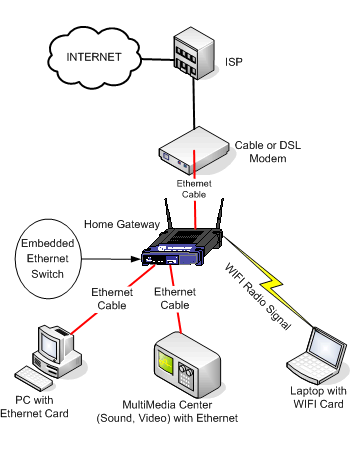
Basically, if you have more than one computer in your house you can connect them, with ethernet cables or wirelessly, so that you can share your internet connection, share files and operate peripherals such as printers from any terminal.

As well as more practical advantages, having a home network is also ideal for leisure activities like gaming. As the technology advances, it is now becoming possible to hook networks up to gaming consoles, music speakers and even televisions.

However, for the purpose of this article we will just start with the basics. The two main choices when setting up a home network are a cable network or a wireless network. These are fairly self explanatory. Wireless networks are increasingly becoming the norm these days and are very handy if you have a notebook so you can connect from anywhere in the house. Wireless also has the advantages of having no cables cluttering your home. However, if you want to simply connect two desktop computers, using an ethernet cable could be a cheap and easy option if you do not have wireless.

Connecting two computers
The most basic exercise in networking is simply connecting two computers. This is very simple if you do not have an internet connection. So long as the two computers have networking interfaces you can simply connect using an ethernet cable.

However, most computers produced within the last couple of years have Wi-Fi. If so, an ad-hoc wireless network can be created between the two computers by configuring both terminals to ad-hoc mode. This is pretty simple to do in both Windows and OSX.

Similarly, if the computers have Bluetooth or infrared capabilities you can create a basic network, although transfer speeds can be slow. Of all these options, the cable network will provide the best transfer speeds. However, Wi-Fi speeds are improving all the time.

While there is only a limited amount you can do with a basic two-computer network, it is good practice if you have never set up a network before.

Setting up a network router
If you wish to incorporate an internet connection into the network, as most of us do, you will need to set up your home network with a router. This will also allow you to add more computers to the network as well as peripherals.

However, this process is a good deal more complex. Nevertheless, it is doable and is a skill that is well worth having. Once you do this once it will be will be a breeze the next time.

While cable routers are still commonly used, wireless is the way of the future so we will concentrate on wireless routers for this article. Before you start, you should have a few things to hand. Your computer and your router, of course, instructions for your wireless router, an ethernet cable, and your ISP's contact details.

Your first steps are to plug in and turn on your router, connect it to your modem and to your computer (it is best to connect your computer and router by ethernet cable for the set-up process).

Now, you can use your browser to connect to your router's built-in installation software. The urls http://192.168.1.1 or http://192.168.0.1 will usually open up your router's administration page. You do not need an internet connection for this. If this doesn't work, consult the router's instructions.

Log in to the administration page using the router's provided username and password, usually 'admin' and 'admin' by default. Now you will have to enter the following information:

  • Internet connection information
  • You may have to input PPPoE information
  • You may possibly have to change the default MAC address

If you run into difficulty here consult your ISP's instructions or contact them. They will be able to guide you through this process.

When all the information has been inputted, save it. You should be ready to go now. All going well, your computer should have received an IP address from the router. Try opening your browser to see if you can address to some websites, any websites will do.

If you can access these websites you can unplug your cable and now connect wirelessly. Any other computers, notebooks and other wireless devices should also detect the signal and connect without any problems.

You now have a fully functional wireless home network. Be aware though that your network is most likely open and accessible from any computers in range of the signal so you should take steps to secure it. There is plenty of excellent information available on the internet on how to do this.

Thursday, March 17, 2011

High Definition TV Resolutions: The Basics

What makes High Definition TV so great? Most HDTV watchers would tell you that it's simple: higher resolution. That's what sets HDTV apart from regular TV.

Regular television, or "standard definition" as it's also called, shows up to 480 pixels per line. It looks good if you've never experienced HDTV's higher resolution. With HDTV, the resolution depends on the source. There are two main source resolutions used in HDTV: 1080i and 720p.

1080i
1080i has a resolution of 1,920 by 1,080 pixels. This is a major improvement over standard definition television. CBS, NBC, Discovery Channel's HD broadcasts, PBS and the Xbox 360 all use this resolution. Of course, you can watch these stations on a lower resolution TV set, but if you have a 1080i set, you'll get the better resolution.

Also, 1080i is in a widescreen format. This is another great feature of HDTV.

720p
720p has a lower resolution. It's 1,280 by 720 pixels. Even though it has a lower resolution than 1080i, the difference is not as noticeable as the difference between either one and a standard definition TV. 720p also has the widescreen format. ABC, Fox and ESPN's HD broadcasts all use this resolution.

720p's resolution is lower, but it has a feature called "progressive scan" that 1080i doesn't. Progressive scan makes the movement on screen more fluid and realistic. Progressive scan makes the image move more smoothly.

480p
There is also a 480p format, which Fox uses for its digital broadcasts, but it's technically not HDTV, although it can be viewed on HDTV's. It's 852 by 480 pixels, widescreen and has progressive scan. Fox is the only network that uses this resolution, but some DVD players use it because of the smoother movement of progressive scan.

1080p
There is a newer format called 1080p which has the high resolution of the 1080i with the progressive scan of the 720p, but no network uses it yet. It's mostly a resolution format that some HDTV's are made in. According to reviews, 1080p isn't very much different than 1080i. Unless you have a large TV, like something over 46 inches, there's no noticeable difference.

The 1080p might be good for serious HDTV nuts. It does enable manufacturers to add special features, like increased contrast or better color. Unless you have a really good eye, you might not notice these differences, though. And, the 1080p sets usually cost quite a bit more than the others. In the next few years, there will probably be more reasonably priced 1080p sets. It's expected that more networks will begin taking advantage of 1080p's resolution and possibilities and begin broadcasting in 1080p. If this happens, 1080p sets may become a better buy.

Wednesday, March 16, 2011

How to Install the Computer Network Efficiently.

For a computer network to give the best results, a lot of detailed planning and foresight is required before installation.

Firstly, an organisation needs to clearly define its requirements – how many people would use the network, how many would use it locally (within the office) and how many might require remote access (from a different location), how many computers and other devices (servers, printers, scanners) would be connected to the network, what are the needs of the various departments and who would be in charge of running/managing the network. It also helps if one can anticipate the direction the company would take in the near future so potential growth can be factored in during computer network installation.

The technology issues should also be ironed out in advance – hardware, software, servers, switches, back-up devices, cables and network operating systems. Make sure you have the required licenses to run the software on all your machines before installing a computer network. Alongside computer network installation should proceed ,the building of a dedicated technical support staff, either within your own organisation or outside consultants. Delegate responsibility clearly for network management. Before installing the network, you also need to choose the security mechanism to protect corporate data and keep viruses at bay.

The transition to a new or upgraded computer network can bring some teething problems. To minimise chances of confusion, the company might need to train its staff to make them familiar with the new system. Careful planning will to a large extent prevent crises like system downtime and network crashes.

Tuesday, March 15, 2011

How Plasma TVs And LCD TVs Differ

The buying of large-screen TVs has absolutely skyrocketed lately. It seems that everyone wants one – and with good reason. The large-screen TV has come a long way from those faded-out behemoths of old that took up half your living room and never really produced a picture of decent quality. Now, however, especially in combination with HDTV, you can get not only a nice, large picture, but a crisp, clean one too.

Once you decide that you’re ready for a large-screen TV, you quickly discover that you only really have two main options – a plasma TV or an LCD TV. Plasma TVs were first on the scene, but the recent mass production of LCD TVs by major manufactures has put LCD TVs pretty much on equal footing with plasmas. That said, you will still have to make a choice.

If you’re like most people, you not only have no idea how the two differ, you don’t even know the areas you should be considering in order to determine how they differ. But they do indeed differ, and knowing the difference is extremely important if you’re going to get the TV that’s right for you.

You can essentially boil the differences between plasmas and LCDs into twelve basic points. In some areas, plasmas will win out. In other areas, LCDs will win out. In yet other areas, it will depend on your own personal taste in order to decide who wins out.

The twelve ways plasma TVs and LCD TVs differ are the following:

  1. The first is a technical issue, and may seem a little boring, but it really does affect other areas. Plasmas TVs are made of chemical compounds called phosphors. LCD TVs use millions of liquid crystals.
  2. The next section is related to how big the TVs are and the availability of larger sizes. You have a wider selection of larger-size TVs with plasmas (though LCDs are catching up).
  3. The next section is “small size,” which is also important. Plasmas don't come in smaller sizes, which you will need for places like the kitchen.
  4. Next is viewing angle. Plasmas tend to have a wider viewing angle (though, again, LCDs are catching up).
  5. Although the manufacturers may not like to admit it, each “can” suffer from certain problems. Plasmas can suffer from burn-in effect; LCDs don't.
  6. Another problem area, but for LCDs, is “delay.” LCDs can produce a jagged figure when in motion. Plasmas tend to do better. HDTV improves this dramatically for both.
  7. The next area is life span. You can replace the light source with an LCD, thereby bringing your original picture back. With plasmas you can't.
  8. In the next few sections, the theme of “picture quality” is considered. First, color: LCDs produce sharp, lively colors. Plasmas produce warmer and more accurate colors.
  9. Next is brightness levels and the TVs ability to handle different lighting. LCDs tend to do better in bright-light conditions.
  10. Also related to picture quality is “black levels.” Plasmas tend to produce blacker blacks.
  11. Another area to consider is contrast range. Plasmas, "technically," produce a higher contrast range.
  12. Last, and certainly not least, is price. At the moment, plasmas tend to run a little cheaper, but this is changing rapidly as LCDs flood into the market. By the time you read this, in fact, there may be no difference at all

Essentially, which one is right for you will all comes down to taste: What potential negatives will you not really notice? What positives do you want more of? What do you really want the TV for – movies, sports, news, regular TV shows? Both plasmas and LCDs have strong advocates in their corners. Both have deliriously happy customers. But those happy customers are only happy because they knew what they wanted before they made their purchase. If you want to make the right choice, you’ll have to decide what it is you want and which of the two TVs can best give you that.

Friday, March 4, 2011

LCD TV Checklist: Are You Prepared?

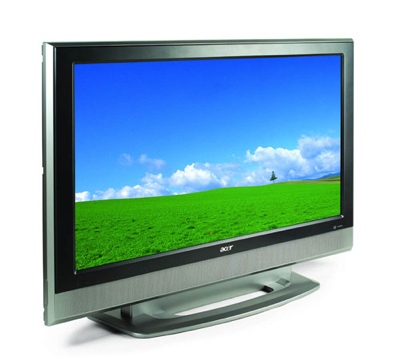
LCD flat screen TVs provide a superior picture as compared to a traditional television - and they can come in more attractive styles to boot. A flat screen LCD TV can be mounted on a wall, under a cabinet, on the ceiling… or can sit on a stand or on top of furniture. LCD TVs are versatile, flexible, and provide a better entertainment experience… but how do they work?

LCD flat screen TVs, and LCD technology itself, is based on the properties of polarized light. LCD TVs consist of two, perpendicularly arranged panes of polarized glass "stuck together" by a liquid-crystal-filled polymer solution. When they are exposed to electrical currents, the crystals untwist to varying degrees, permitting specific amounts and colors of light to pass though them. Flat screen LCD TVs are, in effect, projection TVs that depend on an extremely bright lamp as their light source, so they're considered a "passive" display.

So how do you choose the right flat panel LCD TV for you? You should at least consider the following factors when shopping for a flat panel LCD TV.
  1. Look for a HDMI input. This port keeps the signal all-digital, avoiding degradation that can occur as the signal passes through other components (like your cable box). HMDI carries high-definition audio as well as video. Some satellite receivers and DVD players also connect through this port.
  2. Match the LCD TV size to the size of the room where it will be placed. Because LCD TVs have higher resolutions than conventional TVs, you can sit closer than you normally would, so you can view a larger screen comfortably. (Keep in mind a 42-inch screen may overwhelm a small room, though.)
  3. Decide if you want the picture-in-picture feature. The picture in picture feature allows you to simultaneously view two video sources at once, with one appearing as a small window on the screen. If you do want picture-in-picture in your flat panel LCD TV, keep in mind that single-tuner picture-in-picture lets you watch TV in one window and another source (like a DVD) in the second window. A flat panel LCD TV with two tuners lets you watch two television sources at once.
  4. Do you need HDTV? A flat panel LCD TV with EDTV is cheaper, but it can't display high-definition signals. The price difference between smaller flat panel HD-ready LCDs and ED-ready LCDs is fairly low, so you're better off buying a HD-ready set. In fact, most experts say there's little reason to buy a non-HD LCD television. These lower resolution LCD TVs won't be able to accept high-definition signals, so the picture won't look any better than regular analog TV. And small HD-ready LCD TVs can be found for $500 or less, which is cheap enough that there really isn't much to "save" on a non-HD LCD TV.
  5. Check to see if the TV comes with a stand or mounting hardware. Most flat panel LCD TVs come with a basic table stand, but wall-mounting hardware costs an additional $100 to $200.
  6. Look into the manufacturer's warranty policy before buying online. Some manufacturers have strict policies regarding authorized dealers. If you buy a Sharp LCD Television, for example, from an unauthorized dealer, Sharp may not offer warranty coverage. (However, the retailer may offer a substitute warranty that sufficiently covers you.) The difference in price between an authorized Sharp dealer and a discounter can sometimes be hundreds of dollars, so make sure you're comfortable with the risk of not having a warranty, or make sure you ask the dealer for information about their warranty terms for the flat panel LCD TV you're considering.
  7. Finally, learn about LCD TVs. There are far more things to learn about LCD TVs than the above mentioned points. Get educated on how to buy an LCD TV.